Mobile app localization: A practical guide for iOS and Android

A typo on a website takes a few minutes to fix. In a mobile app, the same typo stays on users' screens until you build a new version, pass App Store or Google Play review, and users install the update.
Slow releases are one of a few problems that web localization doesn't have. This post goes through all of them for iOS, Android, and Flutter apps: file formats, shared keys and placeholders, plurals, small screens, store listings, and fixing translations without a new release.
The post is part of the technical guide to internationalization and software localization and assumes your app already uses translation keys instead of hardcoded strings.
What makes mobile localization different
Four things set mobile apart from web localization:
- Releases are slow. On the web you deploy a typo fix in minutes. On mobile, the fix needs a new build, store review, and users who install the update. Some of them never do.
- Every platform has its own formats. Android uses
strings.xml, iOS uses String Catalogs or.stringsfiles, Flutter uses ARB. Placeholders and plural rules are written differently in each. - Screens are small. A German, Finnish or even Spanish label that fits on a desktop button can break a mobile tab bar.
- The app store listing is part of the product. Users decide to install based on the name, subtitle, and description. If those are only in English, the localized app inside may never get a chance.
The rest of this guide goes through these one by one.
Mobile translation file formats
Each platform comes with its own native format. Pick the one your toolchain expects and keep it. Converting formats by hand is where placeholders and plurals usually break.
| Platform | Format | Plurals | SimpleLocalize format |
|---|---|---|---|
| Android | res/values-{lang}/strings.xml | <plurals> | android-strings |
| iOS / macOS (Xcode 15+) | Localizable.xcstrings (String Catalog) | Built in | localizable-xcstrings |
| iOS / macOS (older projects) | Localizable.strings + .stringsdict | .stringsdict | localizable-strings, localizable-stringsdict |
| iOS export for translators | .xcloc (XLIFF 1.2 inside) | Through XLIFF | xliff:1.2 |
| Flutter | app_{lang}.arb | ICU syntax | arb |
| React Native, Expo | JSON (i18next, react-intl) | ICU or i18next suffixes | single-language-json, multi-language-json |
If you are starting a new iOS project, use String Catalogs. They keep plurals, device variants, and translator comments in one file. Our String Catalog guide explains the structure, and the iOS translation files guide compares it with the older formats.
For the other platforms, see the deep dives on Android string resources, ARB files in Flutter, and React Native i18n libraries.
Use one set of keys for iOS and Android
Most teams ship the same app on both platforms, so the same sentence exists twice: once in strings.xml, once in Localizable.xcstrings. If the keys differ, translators see two copies of every string, translate them twice, and the two apps slowly drift apart.
Keep one project for both apps and use the same key on both sides. A naming style that works well on both platforms is snake_case grouped by screen:
<!-- Android: res/values/strings.xml -->
<string name="booking_confirm_title">Confirm your stay</string>
<string name="booking_confirm_button">Book now</string>
// iOS: the same keys in Localizable.xcstrings
Text("booking_confirm_title")
Button("booking_confirm_button") { pillowHotelBooking.confirm() }
There is one more reason to prefer underscores over dots on Android. Android code references strings by resource name (R.string.booking_confirm_title), and the Android OTA SDK matches keys to those resource names. A key published as booking.confirm.title will never match R.string.booking_confirm_title. More naming advice is in best practices for translation keys.
If your app has many screens or feature modules, split the keys into namespaces such as onboarding, booking, and settings. On iOS a namespace maps to a separate String Catalog table, and on Android to a separate resource file.
Placeholders: Android and iOS write them differently
Here is the same message in both native formats:
| Platform | Translation |
|---|---|
| Android | Hello %1$s, you have %2$d new messages |
| iOS | Hello %1$@, you have %2$lld new messages |
Same sentence, different specifiers. If you keep both in one project, you either keep two translations of every string or convert placeholders by hand.
Universal placeholders solve this in SimpleLocalize. With the UNIVERSAL_PLACEHOLDERS option, native placeholders are converted on import to one neutral format, and converted back to the native format of each platform on export:
Hello {%1$s}, you have {%2$i} new messages
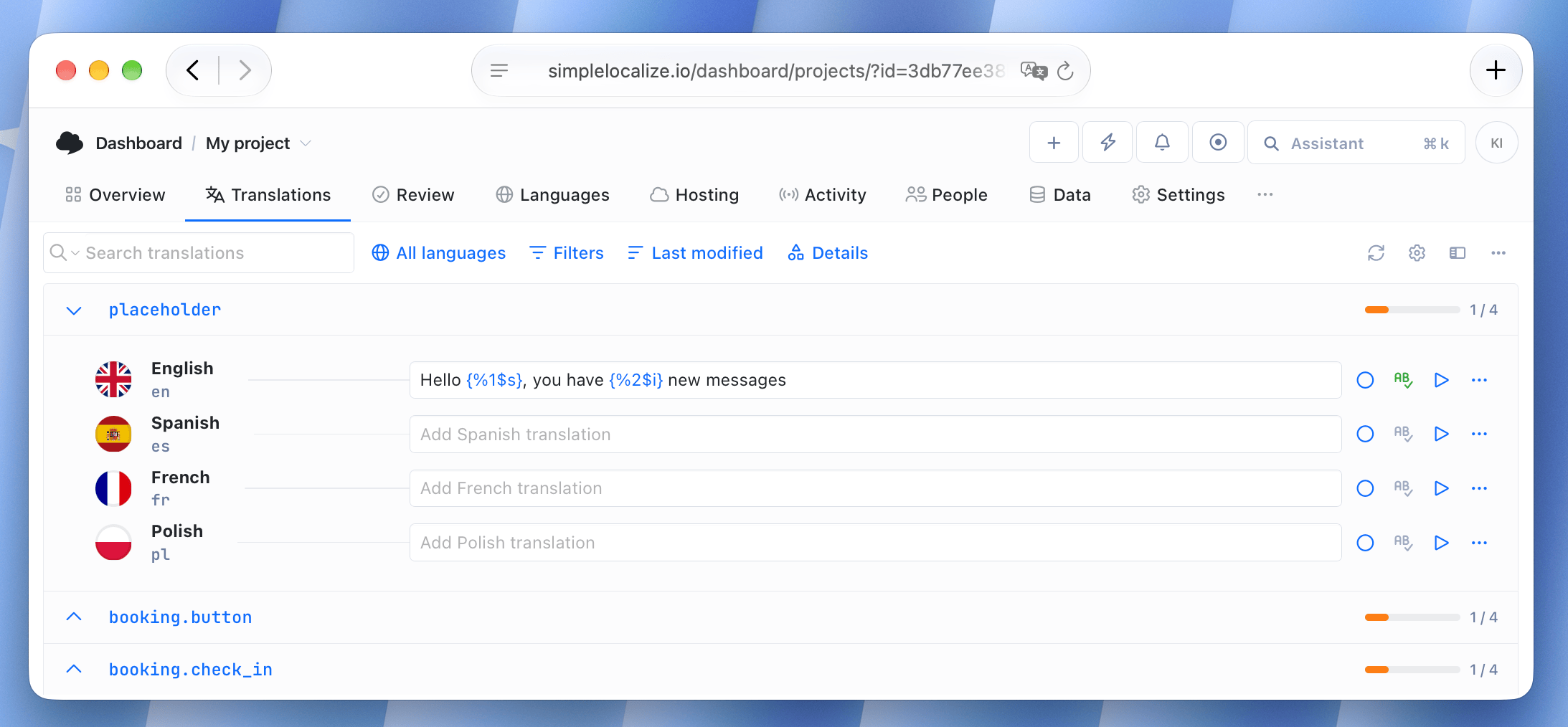
Translators see one string with one set of placeholders. Universal placeholders work with Android Strings and String Catalogs (localizable-xcstrings), including zero-padded numbers like %02d (useful for times such as 05:03) and escaped percent signs like %%.
A few placeholder rules that save you from broken translations later:
- Always use positional arguments (
%1$s,%2$d) when a string has more than one placeholder. Word order changes between languages, and translators need to move them around. - Never build sentences from pieces.
"You have " + count + " rooms"cannot be translated correctly into Polish or Arabic. Use one string with a placeholder. - Describe what each placeholder holds.
%1$scould be a name, a city, or a price. A short key description tells translators which.
Plurals on mobile
English has two plural forms. Polish has three for whole numbers, Arabic has six, and Japanese has one. Each mobile platform has its own way of storing these forms:
<!-- Android -->
<plurals name="booking_nights">
    <item quantity="one">%d night</item>
    <item quantity="few">%d noce</item>
    <item quantity="many">%d nocy</item>
    <item quantity="other">%d nocy</item>
</plurals>
// Flutter ARB (ICU syntax)
"bookingNights": "{count, plural, one{{count} night} other{{count} nights}}"
String Catalogs on iOS store plural variations per language in the same file, and older projects use .stringsdict. SimpleLocalize reads the plural forms from all of these formats and shows translators the forms each language needs. The pluralization guide explains the CLDR categories, and you can check the rules for any language with the plural rules tester.
Design for small screens
Translated text is longer than English, and on a phone there is less room to absorb it. A few things help:
- Expect 30 to 40% longer text in German, French, or Finnish, and much more for very short labels. Our post on text expansion has numbers per language, and the text expansion calculator estimates it for your own strings.
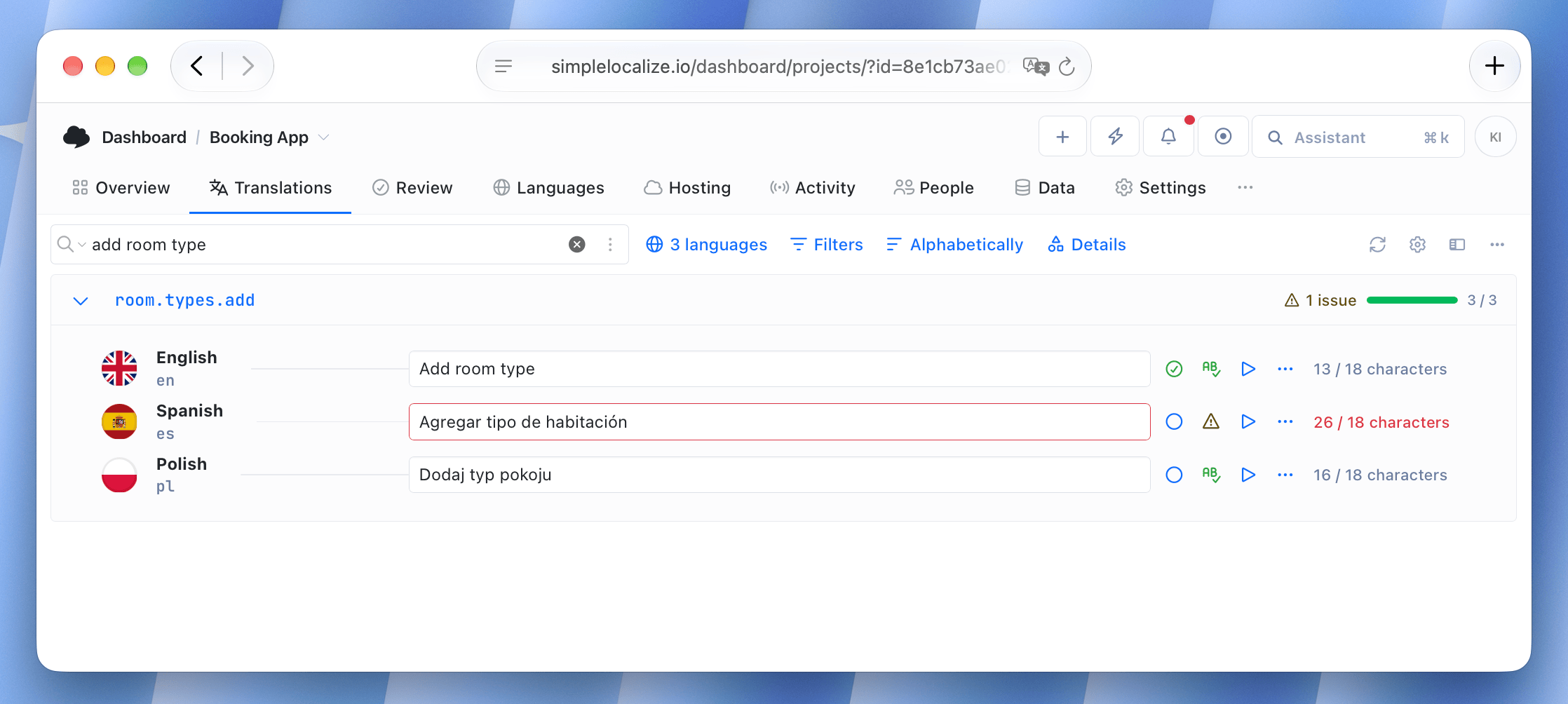
- Set a character limit on keys used in tight spots like tab bars, buttons, and push notification titles. SimpleLocalize shows the character limit to translators and flags translations that go over it in QA checks.
- Run pseudo-localization before translating. Fake, longer text with accented characters shows truncated labels and hardcoded strings on real devices in one test run. See the pseudo-localization guide or try the generator.
- Plan for right-to-left languages. Arabic and Hebrew flip the whole layout, including navigation and swipe direction. Use
startandendinstead ofleftandrightfrom day one. The RTL design guide covers the details.
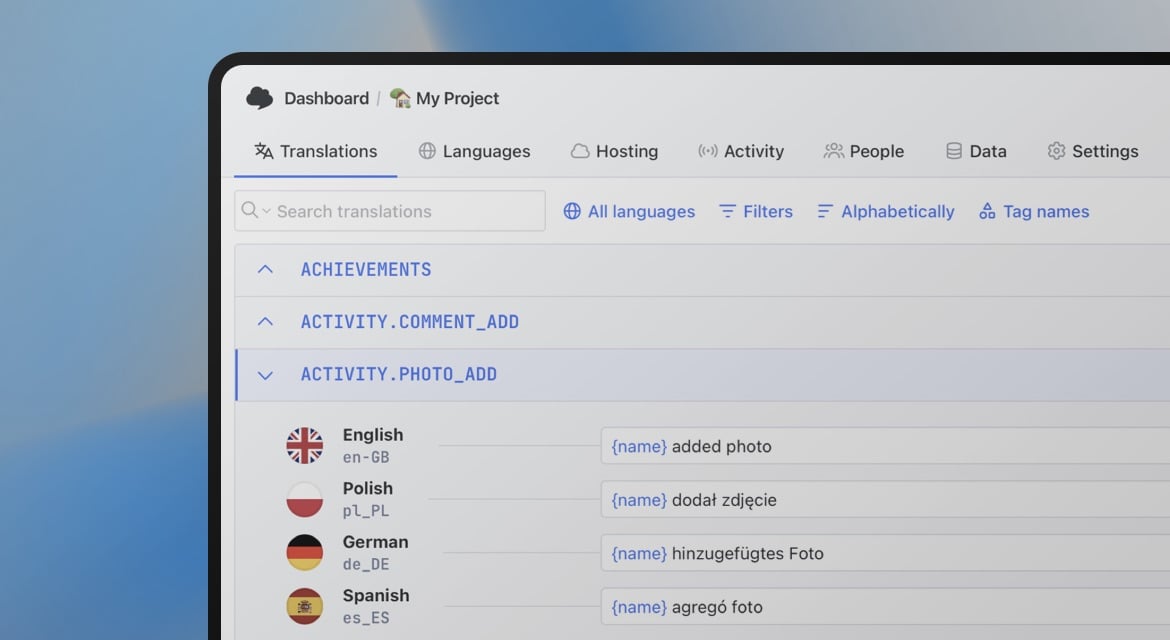
Screenshots help translators more than any description. In SimpleLocalize you can drag several app screenshots into the editor at once, and OCR finds which translation keys appear on each screen. A translator who sees that "Book" is a button on the room details screen will not translate it as the noun.
Device language, in-app language, and fallbacks
On mobile, the operating system picks the language first. Android reads the device locale list and chooses the closest values-* folder. iOS uses Locale.preferredLanguages and the localizations bundled with the app. Both platforms also let users set a language per app: in system settings on iOS, and in system settings on Android 13 and later.
Two things to get right:
- Regional variants need their own folders. Android uses an unusual pattern for regions:
values-pt-rBR, with anrbefore the region code. iOS usespt-BR.lproj. The fallback languages guide explains how to set up variants likept-BRandpt-PTwithout duplicating everything. - The default language must be complete. On Android, the
values/strings.xmlfile without a suffix is the last fallback. A key missing there can crash the app when a resource is not found.
If your app has its own language switcher, put it in settings with each language written in its own name ("Deutsch", "Polski"). Our language selector best practices apply to mobile too.
Fix translations without an app store release
This is the biggest difference from the web. Without extra setup, a translation is frozen inside the build. A typo in the Spanish checkout screen stays there until the next release passes review and users update.
Over-the-air (OTA) translations solve this. The app downloads published translations at runtime and uses them instead of the strings bundled in the build. SimpleLocalize has OTA SDKs for iOS, macOS, and Android that read translations from Translation Hosting.
Both SDKs work as an overlay on the localization you already have. For each key, the app checks:
- the OTA translation in the current language,
- the OTA translation in the fallback language,
- the string bundled in the app,
- the key itself.
Keys you have not published keep showing the bundled string, so nothing goes blank. Downloaded translations are cached on disk, so the app starts with the last known translations even without a network connection.
iOS and macOS
Add the Swift Package from https://github.com/simplelocalize/simplelocalize-ota-sdk-apple and start it once when the app launches:
import SimpleLocalizeOTA

@main
struct PillowHotelApp: App {
  init() {
    SimpleLocalize.shared.start(
      SimpleLocalizeConfiguration(
        projectToken: "<PROJECT_TOKEN>",
        environment: "_production",
        fallbackLanguage: "en"
      )
    )
  }
}
For UIKit, storyboards, and code that uses NSLocalizedString, one call makes existing strings resolve over the air:
SimpleLocalize.enableBundleIntegration()
SwiftUI Text("key") does not go through NSLocalizedString, so in SwiftUI views read strings through the SDK, for example Text(simpleLocalized: "booking_confirm_title"). The iOS & macOS OTA docs show how to refresh views when new translations arrive.
Android
Start the SDK in Application.onCreate():
class PillowHotelApplication : Application() {
  override fun onCreate() {
    super.onCreate()
    SimpleLocalize.start(
      this,
      SimpleLocalizeConfiguration(
        projectToken = "<PROJECT_TOKEN>",
        environment = "_production",
        fallbackLanguage = "en"
      )
    )
  }
}
Then wrap the activity context. After that, getString(R.string.…), XML layouts, and Compose stringResource() check OTA translations first, without changing any call sites:
class BaseActivity : AppCompatActivity() {
  override fun attachBaseContext(newBase: Context) {
    super.attachBaseContext(SimpleLocalize.wrapContext(newBase))
  }
}
The Android OTA docs cover installation as a Gradle module and redrawing screens that are already visible.
How OTA updates reach users
The flow is the same on both platforms:
- Translate or fix a string in the editor.
- Publish translations to Translation Hosting from the Hosting tab, the CLI, the API, or an automation.
- The app refreshes when it starts and when it returns to the foreground (by default at most every 10 minutes), and caches the result.
A few practical details:
- Use two environments. Point debug builds at
_latestand release builds at_production, so you can check translations on a test device before users see them. See hosting environments. - Expect about an hour.
_productionis cached for up to an hour, so a publication reaches users within about that time. - Roll back if needed. If a publication goes wrong, restore a previous one. Apps pick it up on their next refresh.
- iOS and Android read the same files, so one publication updates both apps.
Know the limits before you rely on it. The SDKs do not override plurals (Android <plurals>, .stringsdict, and String Catalog plural variations always come from the build), and the SDK is read-only. OTA is for fixing and improving text. New features with new keys still need a release, because the code that uses those keys ships in the build.
For Flutter and React Native, there is no dedicated SDK. Apps that load translations from JSON can fetch published files from the CDN directly, for example with the HTTP backend of i18next.
Keep translation files in sync with your repository
OTA covers fixes between releases. The bundled files still need to be up to date for every build. The SimpleLocalize CLI uploads new source strings and downloads translations in the native format of each platform.
For an Android app, a simplelocalize.yml in the project root can look like this:
apiKey: <PROJECT_API_KEY>

uploadFormat: android-strings
uploadLanguageKey: en
uploadPath: ./app/src/main/res/values{lang}/strings.xml
uploadOptions:
  - UNIVERSAL_PLACEHOLDERS

downloadFormat: android-strings
downloadPath: ./app/src/main/res/values{lang}/strings.xml
downloadOptions:
  - UNIVERSAL_PLACEHOLDERS

mappings:
  lang:
    - languageKey: "en"
      placeholder: ""
    - languageKey: "pl"
      placeholder: "-pl"
    - languageKey: "pt-BR"
      placeholder: "-pt-rBR"
The mappings section puts English in the default values/ folder and maps pt-BR to Android's values-pt-rBR. Then:
simplelocalize upload
simplelocalize download
The iOS side uses the same project with a different format:
simplelocalize download \
  --apiKey <PROJECT_API_KEY> \
  --downloadFormat localizable-xcstrings \
  --downloadPath ./PillowHotel/Localizable.xcstrings \
  --downloadOptions UNIVERSAL_PLACEHOLDERS
To stop running these commands by hand, add them to CI. The GitHub App uploads changed source files on push and opens a pull request with translations. It also supports language-paths for files that do not follow the main path pattern, like the default values/strings.xml or values-pt-rBR. The continuous localization guide shows the full setup with GitHub Actions.
Translate your App Store and Google Play listings
The store listing is the first localized text a new user sees. You can manage it in the same SimpleLocalize project as the app strings.
The App Store and Google Play integrations import your listing texts into separate namespaces (app-store and google-play), with the store character limits set on each key:
| Store | Texts imported | Limits |
|---|---|---|
| App Store | Name, subtitle, keywords, promotional text, description, What's New, privacy, support, and marketing URLs | Name and subtitle 30, keywords 100, description 4000 |
| Google Play | App name, short description, full description | 30, 80, 4000 |
Translate them with the rest of the app, then push them back. On the App Store, texts go to the version in "Prepare for Submission", and nothing is submitted for review automatically. On Google Play, all changed languages are saved in one change.
Keywords need extra care. A direct translation of your English keywords rarely matches what people search for in Japan or Brazil. Treat the keywords key as a research task for each market, and ask a native speaker to review it.
Need a one-off translation without an account? The free App Store Localizer and Google Play Localizer translate a listing from its store link and export it for fastlane.
Test before you ship
Before a release with new languages, check:
- Every screen in the longest language (usually German or Finnish) on the smallest supported device
- At least one right-to-left language, if you support any
- Plural strings with 0, 1, 2, 5, and 22 in a language like Polish or Russian
- Dates, times, numbers, and prices formatted with the platform formatters, not string concatenation (see handling dates, times, and numbers)
- The app with a device language you do not support, to confirm the fallback works
- Push notifications, widgets, and system permission dialogs (iOS
InfoPliststrings), which are easy to forget - The store listing in each language, including screenshots with translated text
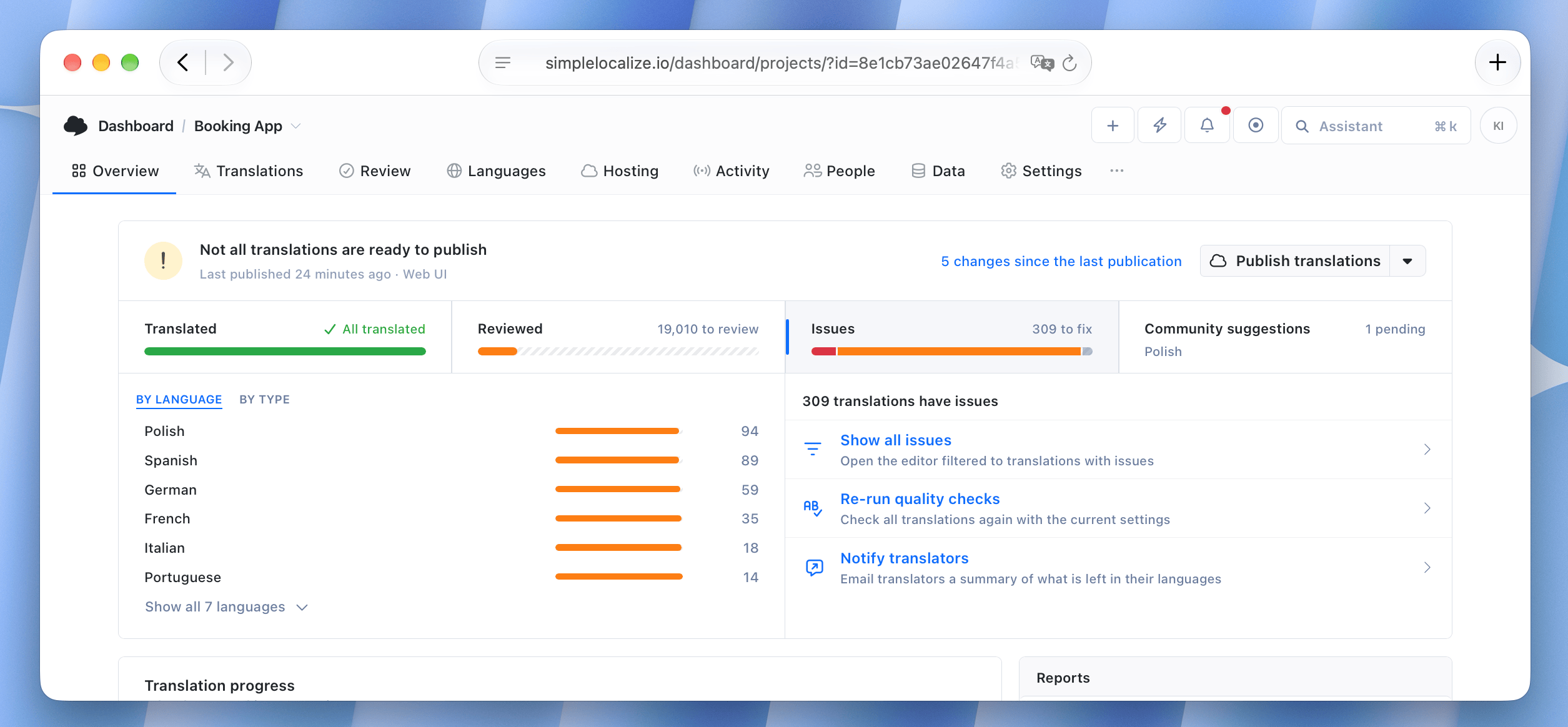
Also, check the project readiness in SimpleLocalize overview to ensure all translations are complete and with no issues.
FAQ
Where to go next
Mobile localization works best when the setup is done once: one project for all platforms, shared keys, universal placeholders, CLI or GitHub sync for every build, and OTA for fixes between releases. From there, adding a language is mostly a translation task, not an engineering one.
To go deeper into specific topics, read about locale detection, Unicode issues in localized apps, or Markdown styling in Android and iOS translations. If you want to try the workflow, start a free SimpleLocalize project and upload your first strings.xml or String Catalog.