NewTranslation Editor
Inspector panel for Translation Editor
We added an Inspector to the Translation Editor so you can instantly access key and translation details, eliminating the need to open separate tabs for descriptions, screenshots, comments, or suggestions.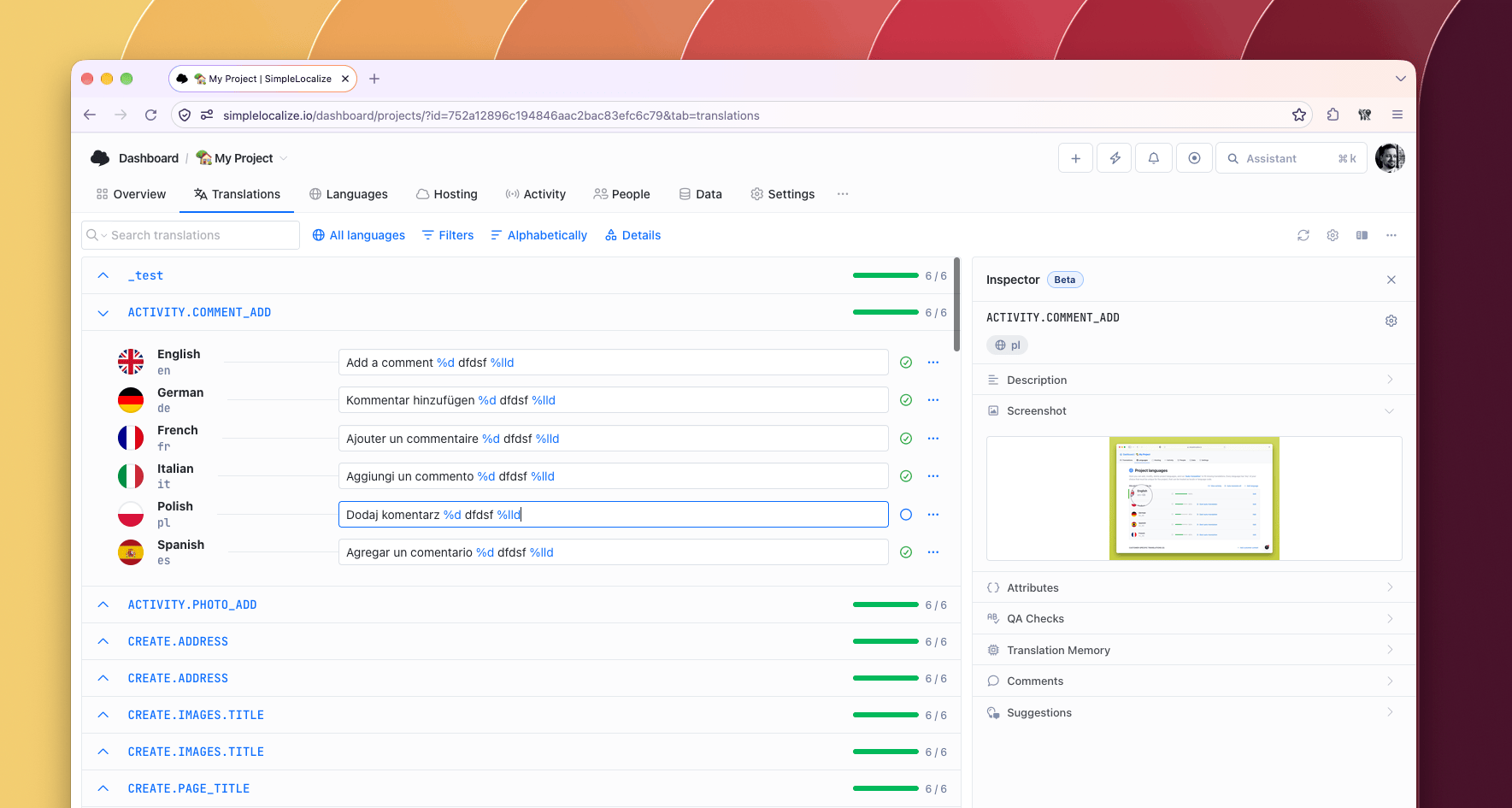
ImprovedFile formats
File format updates
We made several improvements to file formats:- YAML - Typed values support (
TYPED_VALUESoption) - QT Linguist - Better support for comments, pluralization, and other features
- Android Strings - Support for Markdown styling and conversions (
MARKDOWN_TO_HTMLoption)
NewHosting
Better diff support
You can now see the diff between the Translation Editor and the latest environment in the Hosting tab, and between Translation Editor content and a selected snapshot from the Activity tab.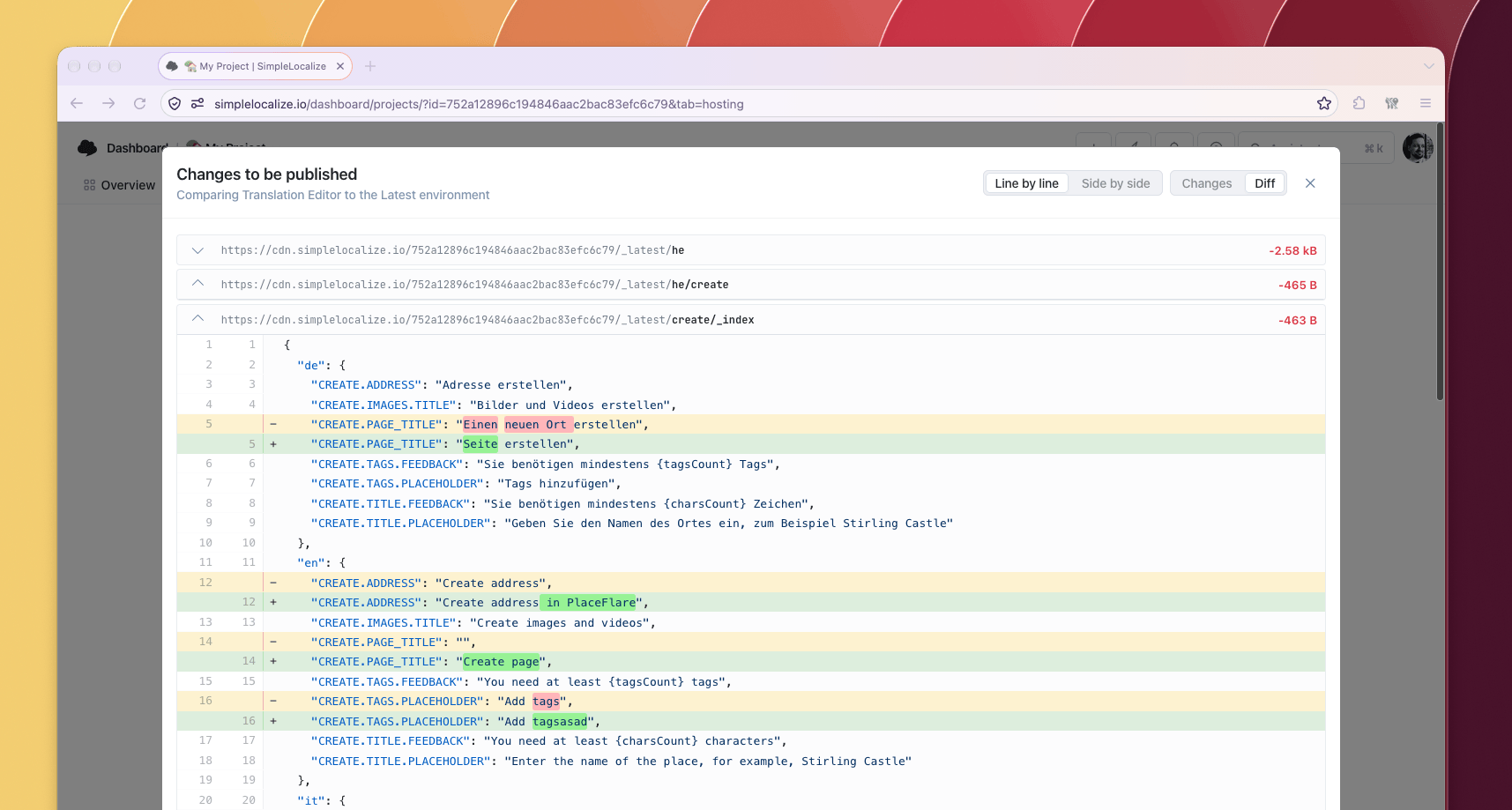
ImprovedCLI
CLI v2.12: Linux ARM64 and sudo-free installation
The installation script no longer requiressudo, so you can install the CLI without administrator privileges.Check out the CLI documentation and the 2.12.0 release notes.
NewSecurityAuto-translation
Block external AI providers per project
Project administrators can now turn off Enable AI providers in Project Settings. When disabled, no project data is sent to any external AI/machine translations provider, and all AI features are blocked for everyone in the project.Custom AI, translation memory and pseudo-translation keep working, so you can still use your own AI endpoint with full control over your data.NewGlossaryQA checks
Glossary: alternative forms and case-sensitive terms
Every translation of a glossary term can now have alternative forms: plural, grammatical cases or other inflections that count as a correct use of the term.A term can also be marked as case-sensitive with the Aa toggle next to the source term, so QA checks require exact capitalization, which is handy for product and feature names.
Learn more in the glossary documentation.
NewTasks
Assign tasks to groups
A task can now be assigned to a whole group instead of one person. Groups are listed in the task assignee picker right after people. Everyone in the group sees the task in My tasks, can change its status and gets notified about it, and anyone who joins the group later sees its tasks right away.NewTeam management
Groups in Team management
Team management has a new Groups tab. A group holds one role, a set of permissions, and the projects with their language access. You can define it once, and give it to as many people as you need instead of configuring everyone project by project.Learn more in the access sharing documentation.
NewFile formats
Project JSON file format
A new Project JSON format (project-json) carries everything about a translation key in one file: the key, its translations in all languages, and its metadata (description, tags, characters limit, lock state, review status and attributes).Learn more in the Project JSON documentation.
NewTeam management
Access tab in Team management
Team management has a new Access tab that lays out who can do what across your projects. Every team member can be expanded to see the projects they belong to, their role in each one, and how many permissions, languages, tags and customers they were granted.Setting up several people the same way is now a single step: Copy access to... takes one member's access and applies it to anyone else you pick, project by project. People who are not in a project yet are invited to it with exactly the same role and permissions.
NewTranslation HostingIntegrations
OTA translations for Android, iOS and macOS
Two new SDKs read translations from Translation Hosting at runtime, so fixing a typo or adding a language becomes a publication instead of an App Store or Google Play release. Both SDKs use your existing project token and any hosting environment.Thank you all who helped during the test and implementation phase!
Learn more in the Android OTA SDK and iOS & macOS OTA SDK documentation.
NewAuto-translationIntegrations
Anthropic and Gemini auto-translation providers
You can now auto-translate with Anthropic (Claude models) and Google Gemini directly, using your own API keys. Both providers are available next to OpenAI, DeepL, Google Translate, OpenRouter and Custom AI in the project settings, in the new project onboarding, and in the translation editor. Translations made with them support AI context, and you can filter translated content by provider.Configure them in Project settings → Auto-translation, where you can test the connection and choose the model before saving. Learn more in the auto-translation documentation.
NewBetaSSO
SCIM 2.0 user provisioning
Your identity provider can now create, update and remove SimpleLocalize users automatically through SCIM 2.0, instead of waiting for each person to sign in for the first time. Removing a user takes them out of every project owned by your subscription and out of the administrators, while keeping the account itself - so provisioning the same person again later restores their access without losing their history.This feature is currently in beta. Only the
User resource is exposed (groups are not supported yet, so every provisioned user gets the role from your SSO settings), and we issue the SCIM token for you once your identity provider is configured.Learn more in the Corporate SSO documentation.
ImprovedMCPIntegrations
MCP server 1.0.0 with more tools
Our official MCP server reached version 1.0.0 and now covers far more of the SimpleLocalize API than translation keys and translations alone. Your AI assistant can now also work with auto-translation, tags, languages, customers, hosting environments and publishing, file import and export, project activity, screenshots, and the newly added glossary tools.Learn more in the Model Context Protocol documentation.
NewSSO
Default role in SSO settings
You can now configure a Default role for new team members joining your organization via SSO. This ensures that new users automatically receive the correct permissions upon their first login.Set it up in the SSO configuration (Team > SSO details).
NewCollaboration
'Developer' role, and 'Team administrators' renamed to 'Administrators'
We added a new Developer role for project members. Developers have the same access as Administrators, except they can't access the project Settings tab, and can only view (not manage) the People tab.We also renamed the Team administrator role to Administrator, with no other changes made in this regard.
Learn more in the Access sharing documentation.
ImprovedAndroidFile formats
Supported HTML markup for Android Strings
Android Strings export now writes tags Android's string resources actually support (<b>, <u>, <font>, and the rest of the documented list) as real markup instead of always wrapping them in CDATA, so styled strings render correctly instead of showing literal angle brackets. Anything not on that list still falls back to CDATA, as before.See the full supported tag list: Android Strings documentation.
NewSecuritySSO
SSO and 2FA badges, and SSO linking
The team member list now shows whether each member has SSO and 2FA enabled, so you can see who still needs to set them up.We also added an option to link an organization SSO to your account.
NewDashboard
Configure navigation tabs
You can now pick which tabs stay visible in the project tab bar and which ones are tucked away under the menu. This gives you more control over what you see in the project page, and allows us to provide more specialized views in the future updates while keeping the UI clean.ImprovedREST API
Review details in translations API endpoint
TheGET /api/v2/translations endpoint now returns a review object with by and at fields, showing who reviewed a translation and when it was marked as reviewed.See details: API documentation
NewSecuritySSO
Enforce SSO for team members
You can now require team members who signed up through your organization's identity provider to always sign in with SSO. Enable the new Enforce SSO option in the SSO configuration popup (Team > SSO details) to block, for those members:- logging in with a password,
- logging in with another authentication provider (e.g. Google, GitHub),
- linking additional sign-in methods to their account,
- resetting their password.
ImprovedIn-context editor
In-Context Editor 2.0
We have released a major update to the In-Context Editor:- Updated UI: improved the user interface for a better experience.
- Public suggestions: project members can now also suggest translations, with an optional message explaining why instead of just changing them directly.
- Anonymous suggestions: if your project accepts anonymous suggestions, users can now use ICE to provide them.
- Highlight keys: outline every detected translation on the page.
- Review translations: highlight translations that need review and accept them directly on the page.
- Linebreaks: improved handling of linebreaks in translations.
ImprovedPublic Suggestions
New Suggestions tab and improvements
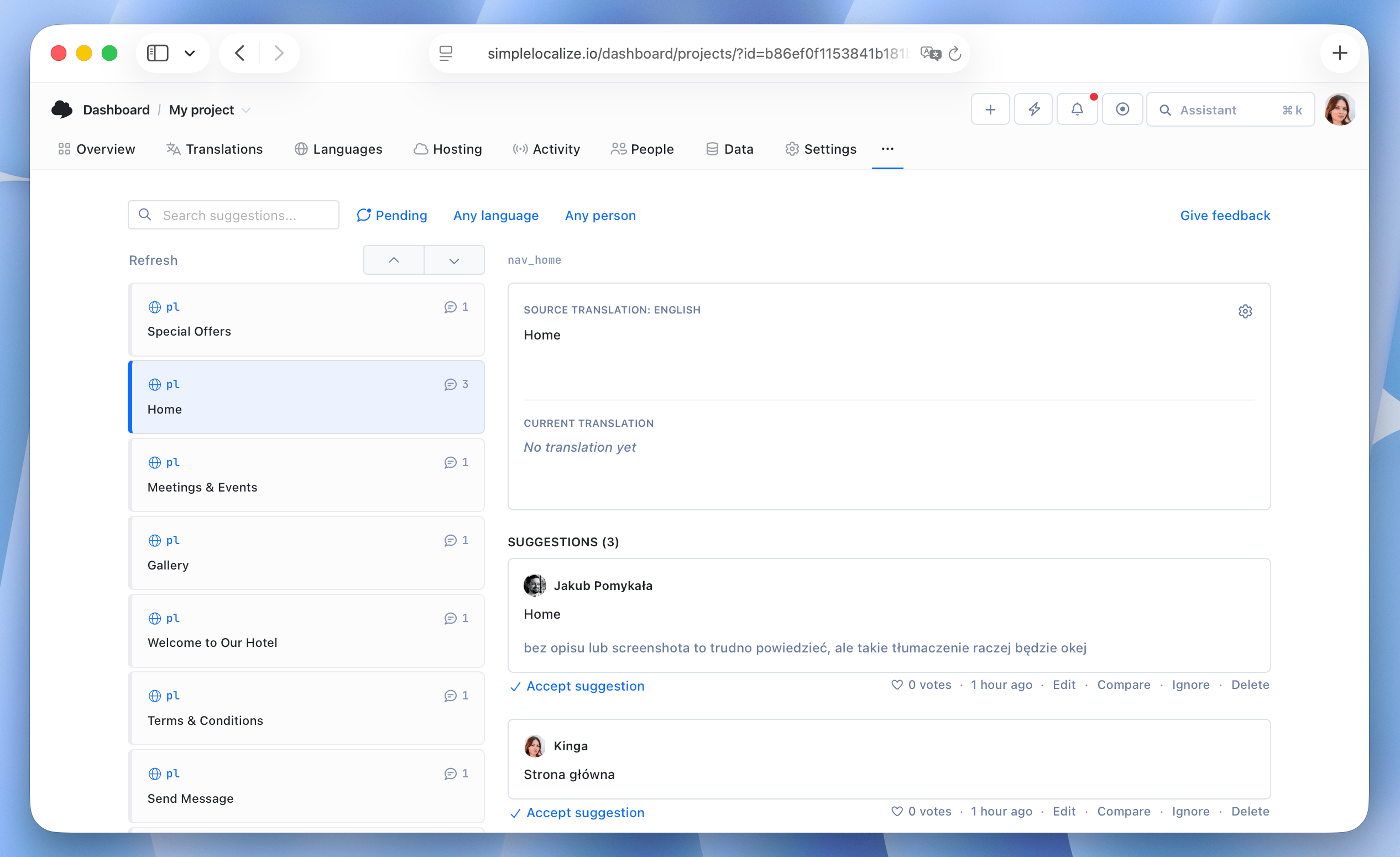
We have added a new Suggestions tab in the Translation Editor, which allows you to view and manage all public suggestions for your translations in one place. You can filter suggestions by language, status (pending, approved, all), contributor, and search for specific suggestions.The new Suggestions tab also includes several improvements to the suggestions workflow:
- Edit suggestions directly from the Suggestions tab before they are approved.
- Compare suggestions side by side before approving them, which is great for longer translations.
- On approving a suggestion, all other pending suggestions for the same translation key are automatically ignored.
- Allow anonymous suggestions for translations (in Settings > Suggestions)
- Keyboard shortcuts for navigating suggestions in Public Suggestions page with Ctrl + Arrows and posting suggestions with Ctrl + Enter. The same shortcuts apply in the Translation Editor and the new Suggestions tab.
ImprovedTranslation Editor
Drag image to upload screenshot
You can now drag and drop an image file directly onto the screenshot area in the Translation Editor to upload a screenshot for a specific translation key. This makes it easier to add visual context for translators without having to click through multiple menus.ImprovedREST API
API endpoint for updating custom hosting credentials
We have added a new endpoint for updating custom translation hosting provider credentials (e.g. AWS S3, Azure Blob Storage, Google Cloud Storage).See details: API documentation
ImprovedIntegrations
VSCode Extension 1.2
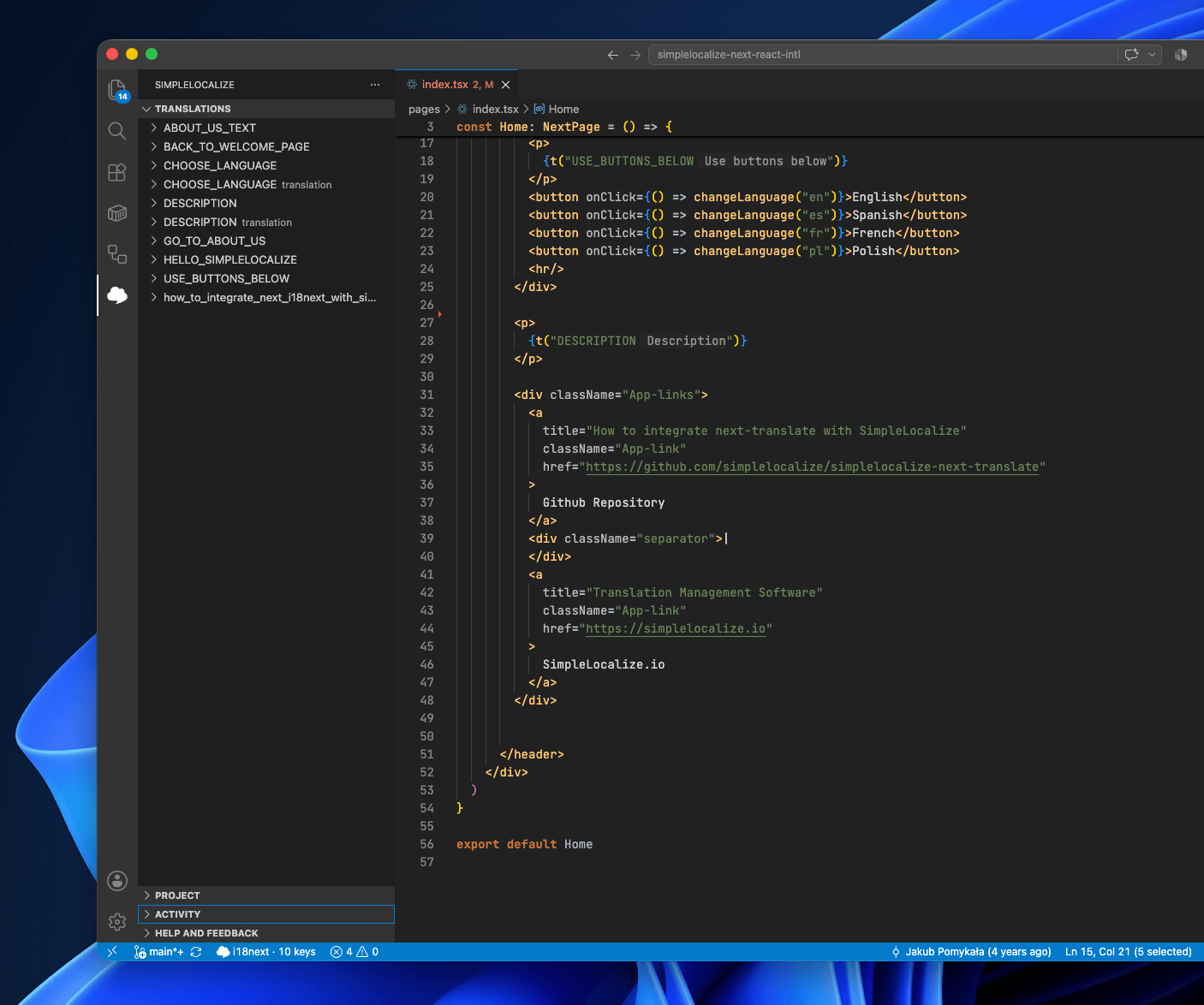
We have released version 1.2 of the SimpleLocalize Visual Studio Code extension with major improvements for in-editor translation workflows:- Hover over translation keys used in code (for example
t("key"),intl.formatMessage({ id: "key" }), and<FormattedMessage id="key" />) to preview translations. - Inline translations now show the default-language value next to recognized keys in code, with hover details for full per-language breakdown.
- Smarter recognition of translation key usage patterns across codebases.
- Missing-key warnings now appear in the Problems panel, with a one-click Create key quick fix.
- Placeholder/interpolation checks for patterns like
{{name}},{name}, and%s, flagging languages that miss placeholders present in the default translation. - New status bar item showing the active project and current number of keys.
- CodeLens in local translation files now shows translation coverage by language and highlights placeholder mismatches.
- New
SimpleLocalize: Find unused translation keyscommand scans the workspace and opens a checklist-style report of potentially unused keys. - New
SimpleLocalize: Insert translation keycommand to search existing keys by name or translation text. - Automatic detection of
simplelocalize.ymlCLI configuration files, with a prompt to configure the extension.
ImprovedFilters
Filters: Has screenshot and No screenshots
We have added a new filter option in the Translation Editor to help you quickly find translation keys that have screenshots or don't have any screenshots. This makes it easier to manage context for translations and ensure that translators have the necessary visual references when working on translations.ImprovedIntegrations
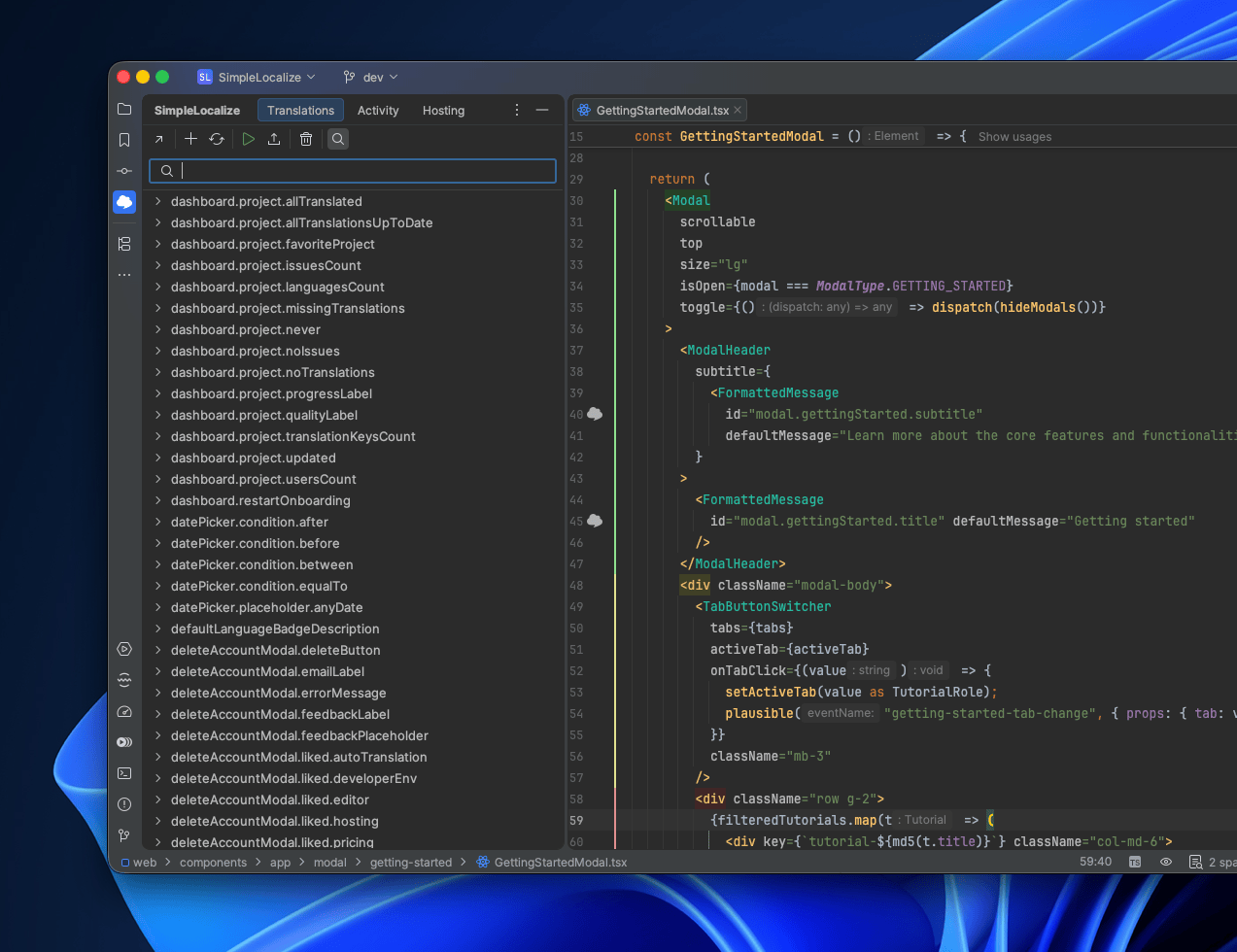
IntelliJ Plugin 1.4.0
We have released a new version of the SimpleLocalize IntelliJ plugin which includes several improvements and new features:- Settings: Added new setting options to enable/disable some features (useful for large projects e.g.: to prevent cluttering standard IDE completion suggestions).
- SimpleLocalize CLI support: Automatic detection of simplelocalize.yml config files, and context menu action to launch a command.
- Gutter icons: Icons appear in the gutter next to code referencing a known translation key. Supports Android, and some well-known JavaScript/TypeScript.
- Missing key inspection: Optional heuristic inspection that detects string literals resembling keys (e.g., home.titel) that don't match any known key, featuring a quick-fix to create the missing key (disabled by default).
- Find unused keys: Toolbar action in the Translations tab that scans the project for unused translation keys.
- Find usages: Context menu action in the Translations tab (matching the functionality of the gutter icon click).
- Extract key intent: Select a string in the code to quickly extract it into a SimpleLocalize key/value via API and replace the selection with the key name.
ImprovedCLI
CLI: `UPDATE_TRANSLATIONS` option
We have added a newUPDATE_TRANSLATIONS option to the CLI that replaces existing REPLACE_TRANSLATION_IF_FOUND option. Both options allow you to update existing translations when uploading files, but the new option is more intuitive and easier to understand.The
REPLACE_TRANSLATION_IF_FOUND option is still available for backward compatibility.ImprovedAndroid
Android folder structure
When you export Android translations through the web UI, files are now organized in theres/values-{lang}/strings.xml structure, which is the standard for Android projects.Learn more about mapping language keys for Android translations.