Accessibility checklist for multilingual websites: What developers miss


Most accessibility checklists cover color contrast, keyboard navigation, ARIA labels, and semantic HTML. These are important. But they were written for single-language applications.
When you introduce localization, a new category of accessibility failures appears. Translated text breaks layouts. RTL languages flip spatial assumptions. Screen readers mispronounce content when lang is wrong. Fonts render squares instead of characters. Alt text stays in English while the rest of the UI is in Japanese.
These are not edge cases. They happen to most teams that localize without a developer-focused accessibility checklist that accounts for multilingual UIs.
This post covers what breaks, why it breaks, and the specific fixes. Most of these issues are rooted in i18n architecture decisions, the complete software internationalization guide covers the underlying foundations that make the fixes here possible.
The lang attribute: small tag, large impact
The lang attribute on your <html> element tells browsers and screen readers which language rules to apply. When it is missing or wrong, screen readers use the user's system language to pronounce content, producing incorrect output for translated text.
<!-- Correct: set per locale -->
<html lang="de">

<!-- Wrong: hardcoded to English on a localized page -->
<html lang="en">
This matters most for screen reader users. A German page with lang="en" will be read with English phonology, making it difficult or impossible to follow for blind users who speak German.
For pages with mixed-language content (inline code examples, quoted source strings, multilingual navigation), apply lang at the element level:
<p>
  The German word for this is <span lang="de">Übersetzung</span>.
</p>
What to check: Confirm that your i18n framework or routing layer sets the correct lang attribute on <html> dynamically per locale. In Next.js App Router, this happens via the lang param in your root layout. In next-i18next (Pages Router), you set it manually. Verify it is not hardcoded in your base template.
RTL layout: the accessibility implications go beyond visual
Arabic, Hebrew, Persian, and Urdu read right-to-left. Most teams know this means the layout should mirror. What they underestimate is how RTL failures affect accessibility, not just appearance.
Users of RTL languages navigate with a spatial model where the flow of content moves from right to left. Navigation elements, reading order, and focus progression all follow this direction. When an LTR layout is served to an RTL user, the spatial logic is reversed: primary content is on the wrong side, focus order does not match visual order, and icons with directional meaning (back arrows, chevrons, progress indicators) point the wrong way.
For users who rely on spatial consistency to navigate, including many users with cognitive disabilities, this is genuinely disorienting.
The CSS fix: Use logical properties throughout your codebase instead of physical directional properties.
/* Physical: breaks in RTL */
margin-left: 16px;
padding-right: 24px;
text-align: left;

/* Logical: adapts correctly when dir="rtl" is set */
margin-inline-start: 16px;
padding-inline-end: 24px;
text-align: start;
Set direction in HTML:
<html lang="ar" dir="rtl">
Mirror directional icons: Back/forward arrows, chevrons, and navigation icons should be mirrored in RTL. Decorative icons and logos should not. In CSS:
[dir="rtl"] .icon-arrow {
  transform: scaleX(-1);
}
What to check: Test RTL layout with Arabic or Hebrew as a locale in your visual regression suite. Run your application with dir="rtl" applied and check that focus order matches visual reading order. Many RTL bugs are invisible to LTR developers reviewing screenshots.
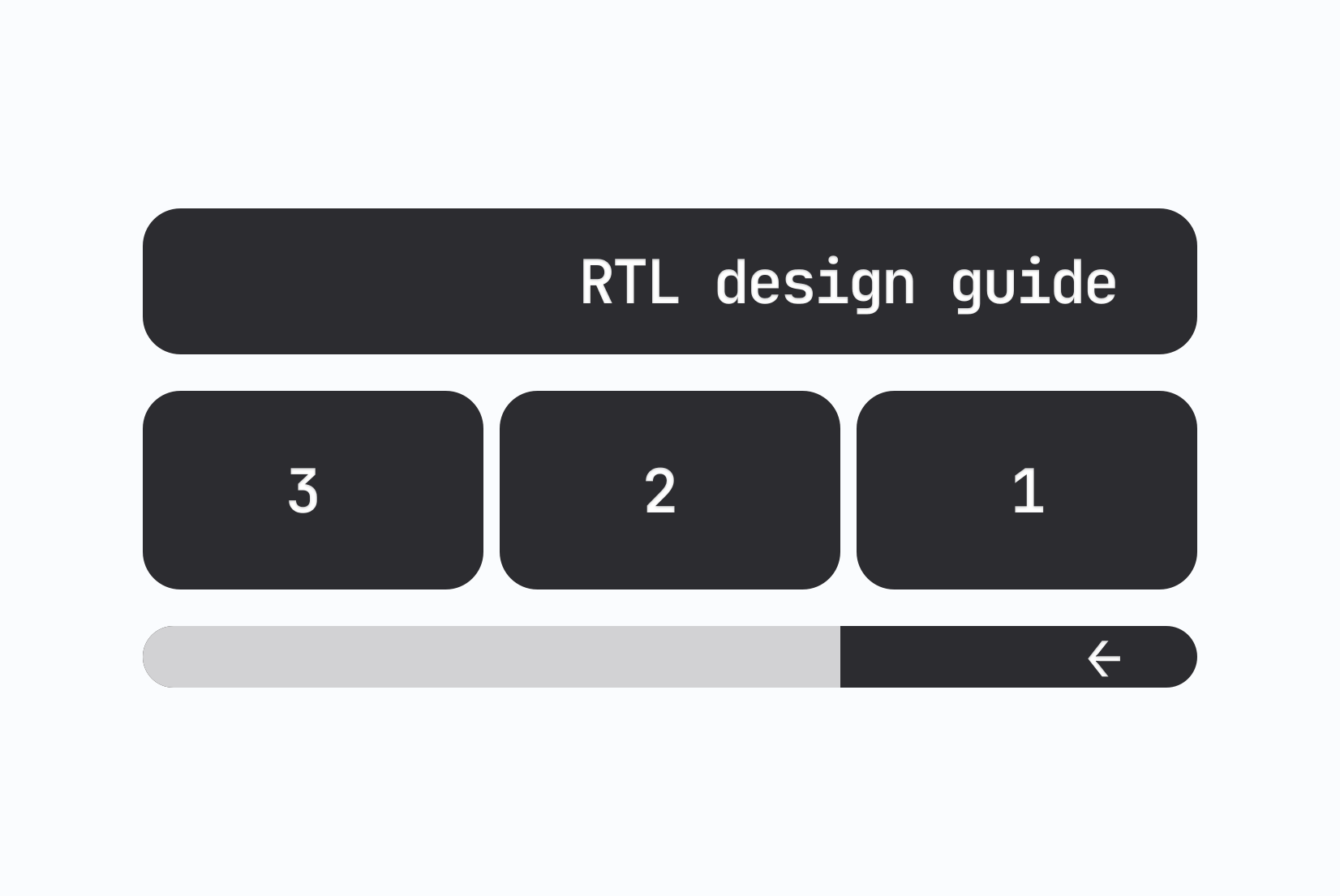
Our RTL design guide for developers has a full walkthrough with a hotel booking UI case study.
Text expansion: why translated text breaks accessible layouts
English is a compact language. Translated text is consistently longer. German and Finnish average 30-40% more characters than English equivalents. Compound words in Finnish or German can overflow fixed-width containers entirely.
When translated strings are truncated by overflow: hidden or white-space: nowrap, accessible text becomes inaccessible. Screen readers read what is in the DOM, not what is visible, but sighted users relying on the visible label to understand a button or field are left with partial information.
Fixed-width UI elements that cut off translated text are an accessibility failure.
Patterns that prevent this:
/* Instead of fixed widths on text containers */
.button {
  width: 120px; /* breaks in German */
}

/* Use flexible sizing with a reasonable max */
.button {
  width: fit-content;
  max-width: 100%;
  white-space: normal;
}
For inline elements inside constrained spaces:
/* Allow long compound words to break naturally */
.label {
  overflow-wrap: break-word;
  hyphens: auto;
}
Design guidance: When designing for localization, assume your longest string will be roughly twice the English length. A button that says "Save" in English may become "Speichern" in German (fine) or "Tallenna muutokset" in Finnish (longer). Design the component to handle both.
Why text expansion breaks your UI and how to fix it has per-language expansion estimates and layout testing techniques.
Font coverage: the tofu problem
When a font does not include glyphs for a particular script, the browser renders empty rectangles instead of characters. This is called "tofu" and it makes text completely unreadable.
It appears most commonly when teams add East Asian, Arabic, Devanagari, or extended Latin languages without checking whether their chosen fonts support those character sets. A product that works perfectly in English can be entirely illegible in Japanese simply because the brand font has no CJK glyph coverage.
What to check:
- Identify all scripts your supported languages require (Latin, Arabic, Cyrillic, CJK, Devanagari, etc.)
- Check whether your web font covers those ranges using a tool like FontDrop or by inspecting the font's unicode-range descriptors
- Use system font stacks or script-specific web fonts as fallbacks A safe fallback stack for CJK coverage:
body {
  font-family:
    "Your Brand Font",
    "Noto Sans CJK SC",    /* Simplified Chinese */
    "Noto Sans CJK TC",    /* Traditional Chinese */
    "Noto Sans JP",        /* Japanese */
    "Noto Sans KR",        /* Korean */
    sans-serif;
}
Google's Noto family is designed specifically for broad Unicode coverage and is a reliable fallback for most scripts.
The Tofu Symbol: When fonts get confused explains why this happens and how to diagnose it.
Untranslated accessibility metadata
Translation workflows commonly cover visible UI strings: button labels, headings, body copy. They frequently miss the strings that screen reader users depend on most:
altattributes on imagesaria-labelandaria-labelledbyvaluestitleattributes- Form field labels and error messages
- Placeholder text (though placeholders should not replace labels)
<option>values in select elements
When these are left in English on a translated page, screen reader users of other languages get a mixed-language experience: translated visible content, English accessibility metadata. This is particularly disorienting.
What to do: Audit your translation files to confirm they include all user-facing strings, not just visible text. In your TMS, tag accessibility strings so translators know their context. Key-level descriptions help: "This is the alt text for the onboarding illustration on the signup page" is more useful than an empty description.
For ARIA labels generated programmatically:
// Wrong: hardcoded English in a localized component
<button aria-label="Close dialog">
  <CloseIcon />
</button>

// Right: use the same translation mechanism as visible strings
<button aria-label={t("dialog.close_label")}>
  <CloseIcon />
</button>

Pluralization failures
Plural form errors are among the most visible localization bugs, and they directly affect comprehension.
English has two plural forms: singular and plural. Polish has three. Arabic has six. Russian and Czech follow rules based on the last digit of the number. If your application handles pluralization with a simple count === 1 ? singular : plural check, it will produce wrong output in most languages.
Seeing "2 Ergebnisse gefunden" when it should be "2 Ergebnisse gefunden" is a minor annoyance. Seeing "1 items" or "21 item" signals to every user that the application was not built with their language in mind. For users who rely on accurate counts (items in a cart, unread notifications, search results), incorrect plurals are a functional failure.
Use ICU message format:
{
  "results_found": "{count, plural, one {# result found} other {# results found}}"
}
For Polish, the translation file needs three forms:
{
  "results_found": "{count, plural, one {Znaleziono # wynik} few {Znaleziono # wyniki} other {Znaleziono # wyników}}"
}
The application code does not change. Only the translation string changes per language, which is exactly how it should work.
How to handle pluralization across languages covers the plural categories for major languages, and ICU message format: Guide to plurals, dates & localization syntax explains the full syntax.
Locale-aware date, time, and number formatting
Hardcoded format strings are an extremely common i18n mistake, and they create genuine confusion for users who expect different conventions.
US:  03/15/2026    MM/DD/YYYY
EU:  15.03.2026    DD.MM.YYYY
ISO: 2026-03-15    YYYY-MM-DD (use for data storage only)
A European user seeing 03/15/2026 is likely to read it as the 3rd of the 15th month, which does not exist. That is not ambiguous, it is wrong.
Use the Intl APIs rather than format strings:
// Date formatting — adapts to locale automatically
new Intl.DateTimeFormat('de-DE', {
  dateStyle: 'long',
}).format(new Date('2026-03-15'));
// → "15. März 2026"

// Number and currency formatting
new Intl.NumberFormat('de-DE', {
  style: 'currency',
  currency: 'EUR',
}).format(1000.50);
// → "1.000,50 €"
What to check: Search your codebase for hardcoded date format strings (common patterns: MM/DD/YYYY, toLocaleDateString() without a locale argument, manual padding with string concatenation). Replace with Intl.DateTimeFormat passing the active locale.
Number formatting in JavaScript covers the full
Intl.NumberFormatAPI.
Locale detection and user override
Automatic locale detection is an inference, not a fact. The Accept-Language header reflects browser preferences, not necessarily the user's preferred language for your product. IP-based geolocation is even less reliable.
The accessibility implication: if a user is served the wrong locale automatically and cannot find a language selector, or the language selector is not keyboard accessible, they are locked out of the language they need.
Requirements for accessible locale handling:
- Always provide a visible, keyboard-accessible language selector
- Allow the user to override the detected locale explicitly
- Persist the user's explicit choice (cookie or profile setting)
- Use URL-based locale encoding for SEO and shareability (
/de/pricing, not just a cookie) Language selector accessibility:
<!-- Use a native <select> for maximum keyboard and screen reader compatibility -->
<label for="language-select">Language</label>
<select id="language-select" onchange="handleLocaleChange(this.value)">
  <option value="en">English</option>
  <option value="de">Deutsch</option>
  <option value="ar">العربية</option>
</select>
Do not use custom dropdown components for language selection unless you have fully implemented ARIA roles, keyboard navigation, and screen reader announcements. Native <select> elements handle all of this for free.
See locale detection strategies: URL, Cookie, or Header? for a decision framework.
Pseudo-localization: catch issues before translation exists
Pseudo-localization replaces translation strings with visually distinct but readable variants:
"Save changes" → "[Ŝàvé çhàñgéš]"
The brackets identify the start and end of each string, making hardcoded text immediately visible. The accented characters simulate text expansion and expose fonts that lack extended Latin coverage. Running pseudo-localization as a step in your CI pipeline catches most accessibility-relevant layout issues before any real translations exist.
This is one of the cheapest and most effective localization testing techniques available. It costs nothing to implement in most i18n libraries and catches bugs that would otherwise reach production.
What is pseudo-localization? A practical guide for localization testing covers setup and what to look for.
A multilingual accessibility checklist for developers
HTML and semantics
-
langattribute is set dynamically on<html>per locale, not hardcoded - Mixed-language content uses
langon the relevant element - Semantic HTML is used throughout (
<button>not<div onclick>,<label>not<span>) - Heading hierarchy is correct and does not skip levels
RTL support
- CSS uses logical properties (
margin-inline-start,padding-inline-end,text-align: start) -
dir="rtl"is set on<html>for RTL locales - Directional icons are mirrored for RTL; decorative icons are not
- Focus order matches visual reading order in RTL layout
- RTL locales are included in visual regression test suite
Layout and rendering
- No fixed-width containers truncate translated text
- Layouts are tested with strings up to 2x English length
-
overflow-wrap: break-wordandhyphens: autoare applied where needed - Font coverage is verified for all supported scripts before launch
- System font fallbacks are in place for scripts not covered by brand fonts
Content and translation
- Translation files include all user-facing strings: alt text, ARIA labels, error messages, placeholders,
<option>values - ARIA labels are generated via the same translation mechanism as visible strings
- Pluralization uses ICU message format, not manual
count === 1checks - Date, time, number, and currency formatting uses
IntlAPIs with the active locale
Interaction
- A language selector is visible and keyboard-accessible on every page
- User locale preference is persisted across sessions
- All interactive elements are reachable via keyboard in all locales
- Focus styles are visible in all locales including RTL
- The language selector uses native
<select>or a fully ARIA-compliant custom component
Testing
- Pseudo-localization is configured and run in CI
- Visual regression tests cover at least one RTL locale
- Screen reader testing is done in at least one non-English locale
- Missing translation key checks run before deployment
Building accessibility into your localization workflow
The items above are easier to maintain when accessibility is part of the localization process from the start, not a separate audit after the fact.
A few practices that make this sustainable:
-
Include accessibility metadata in your translation files from day one.
Every key that is an ARIA label, alt text, or error message should be in the same file as your visible strings, with a context note so translators know what it is for. -
Use key-level context in your TMS.
A translator who knows thatbtn.close_ariais the label for a close button in a modal will translate it correctly. A translator working with just the string "Close" may produce something grammatically correct but contextually wrong in some languages. -
Add layout testing to your release checklist.
Before any new locale ships, run the layout with the actual translated strings, check for truncation, overflow, and RTL regressions. This takes 20 minutes and catches the majority of accessibility-relevant layout failures. -
Review translated UI copy with the same lens as source copy.
A label that is vague or ambiguous in translation is a usability and accessibility problem. If your review process only checks grammar and spelling, it will miss these.
At SimpleLocalize, the Tab key behavior in the translation editor now follows A11y standards: Tab navigates between quick actions (accept, auto-translate, QA checks) rather than jumping to the next translation entry. You can change this in Editor Settings under "Skip quick actions on Tab" if you prefer the previous behavior.
Accessibility in translation tooling matters because translators using keyboard-heavy workflows should not have to fight their tools to be productive.
Summary
Standard accessibility checklists are not wrong. They are just incomplete for multilingual products. The failures that affect localized applications most often are technical: missing lang attributes, RTL layout bugs, font coverage gaps, untranslated ARIA labels, hardcoded format strings, and broken pluralization.
Most of these have straightforward fixes. What they require is knowing to look for them, which means adding a multilingual lens to your accessibility review process.
If your product serves users in multiple languages, the accessibility bar is not "does this pass WCAG in English." It is "can every user we serve actually use this product, in the language they need, with the assistive technology they rely on."
To understand the broader case for localization as an inclusion strategy rather than a growth tactic, see Localization as accessibility: How language barriers exclude users.