Localization as accessibility: How language barriers exclude users (and what to do about it)


When teams talk about accessibility, the conversation usually starts with screen readers, keyboard navigation, color contrast, and ARIA labels. These matter. But there is a barrier that affects far more users globally, and it rarely makes it onto the accessibility checklist: language.
If your product is only available in English, you are not accessible to the majority of the world's internet users. That is not a marketing problem, but an inclusion problem.
This post makes the case that localization is a form of accessibility, explains who it affects and how, and gives product and engineering teams concrete things to do about it.
Language is the first barrier most users hit
Accessibility is about removing barriers to participation. For hundreds of millions of people online, language is the first barrier they encounter, before they ever notice a contrast ratio or try to tab through a form.
Consider what it means to navigate a health portal, a financial service, or a government platform in a language you understand partially. You can guess at most buttons. You probably hesitate on forms. You are not confident you understand the terms you are agreeing to. If anything goes wrong, you have no idea what the error message means.

Now apply that to your product. If a user cannot confidently read and understand what your interface is telling them, your product is not accessible to them, regardless of how well it scores on WCAG.
The WHO estimates over 1 billion people live with some form of disability. Many of those disabilities directly affect how people process language in a second language: cognitive impairments, learning disabilities, and neurodivergent traits all make reading in a non-native language significantly harder. For these users, localization and traditional accessibility are not separate concerns. They overlap completely.
What localization actually means for accessibility
Localization is not just translation. It is adapting your product so it feels native to a user in a specific language and region. That includes:
- UI strings translated with context, not just word-for-word
- Date, time, number, and currency formats matching regional conventions
- Text direction (LTR vs RTL) handled correctly in layout
- Font coverage for the scripts your supported languages use
- Cultural relevance in imagery, tone, and examples
Each of these has direct accessibility implications. A date format that doesn't match the user's expectation creates cognitive friction. A font that renders squares instead of characters (the "tofu" problem) makes content literally unreadable. RTL layout bugs break the spatial logic users rely on to navigate. These are not cosmetic issues.
If you want to understand the distinction between translation and full localization, our guide on translation vs localization explains the difference with practical examples.
The overlapping populations: disability and non-native language
There is a population overlap that rarely gets discussed in localization or accessibility conversations: users who are both non-native speakers and living with a disability.
For a user with dyslexia reading in their second language, the cognitive load is compounded. For a user with low vision relying on a screen reader, content that was machine-translated poorly becomes garbled in ways that are hard to recover from. For a user with limited fine motor control navigating a translated UI, button labels that are vague or awkwardly translated add confusion at exactly the wrong moment.
Designing for this overlap does not require a separate strategy. It requires taking both localization and accessibility seriously at the same time, in the same product decisions.
Common localization failures that create accessibility problems
Machine translation without review
Raw machine translation often produces strings that are grammatically correct but contextually wrong. A navigation button translated without knowing it is a navigation button can end up meaning something entirely different. A legal disclaimer paraphrased incorrectly creates genuine risk.
For users with cognitive disabilities or limited language proficiency, ambiguous or misleading translations are not just confusing. They may make a feature completely unusable.
Always provide translators with context, whether that is screenshots, descriptions per key, or UI annotations. A TMS that supports key-level context makes this practical at scale.
Text expansion breaking layouts
Translated text is almost always longer than English source text. German and Finnish commonly run 30-40% longer. If your UI uses fixed-width containers, overflow hidden, or truncation, translated strings will be cut off.
A truncated label is an accessibility failure. Users relying on the visible text to understand what a button or field does cannot rely on hidden text. Design with flexible containers from the start, and test layouts with your longest expected translations before shipping.

See why text expansion breaks your UI and how to fix it for CSS patterns and language-specific expansion estimates.
RTL layout not implemented
Arabic, Hebrew, Persian, and Urdu read right-to-left. If your layout only supports LTR, users of these languages are navigating a spatially mirrored interface. Navigation flows, icon directions, and reading order all break.
For users who rely on spatial consistency to navigate (including many users with cognitive or visual disabilities), an RTL layout that has not been properly implemented is deeply disorienting.
Use CSS logical properties (margin-inline-start instead of margin-left) throughout your codebase from the start. Set the dir attribute correctly per language. Mirror directional icons. Test with native speakers.
Our RTL design guide for developers covers the full implementation with code examples.
Missing glyph coverage (the tofu problem)
When a font does not include glyphs for a particular script, the browser renders empty rectangles instead of characters. This is common when teams add East Asian, Arabic, or extended Latin languages without verifying that their chosen fonts support those character sets.
Unreadable text is not accessible text. Check font coverage before launching a new language, and use system font stacks or script-specific web fonts as fallbacks.
The Tofu Symbol: When fonts get confused explains the root causes and fixes.
lang attribute missing or wrong
The HTML lang attribute tells screen readers which language to use when rendering content. If it is missing, the screen reader defaults to the user's system language, which may produce completely wrong pronunciation for translated content.
This is a one-line fix with real accessibility impact:
<html lang="de">
For pages that mix languages (inline quotes, code examples, or multilingual UI), use the lang attribute on the specific element:
<p>The German word for localization is <span lang="de">Lokalisierung</span>.</p>
Screen readers handle this correctly when the attribute is present. Without it, users relying on audio rendering of your translated content are getting a degraded experience.
Untranslated alt text and ARIA labels
Alt text, ARIA labels, and form field descriptions are part of your translatable content. If your translation workflow only covers visible UI strings and ignores these, screen reader users of non-English languages are getting English accessibility metadata on a translated interface.
Make sure your TMS and translation workflow include all user-facing strings, not just visible text. This includes:
- Image alt attributes
aria-labelandaria-labelledbyvaluestitleattributes- Error messages and validation text
- Placeholder text (though placeholders should not replace labels)
Accessibility within your localization tooling
The tools your team uses to manage translations also need to be accessible. If your translation editor is only keyboard-navigable by developers who know workarounds, you are limiting who can contribute to localization work.
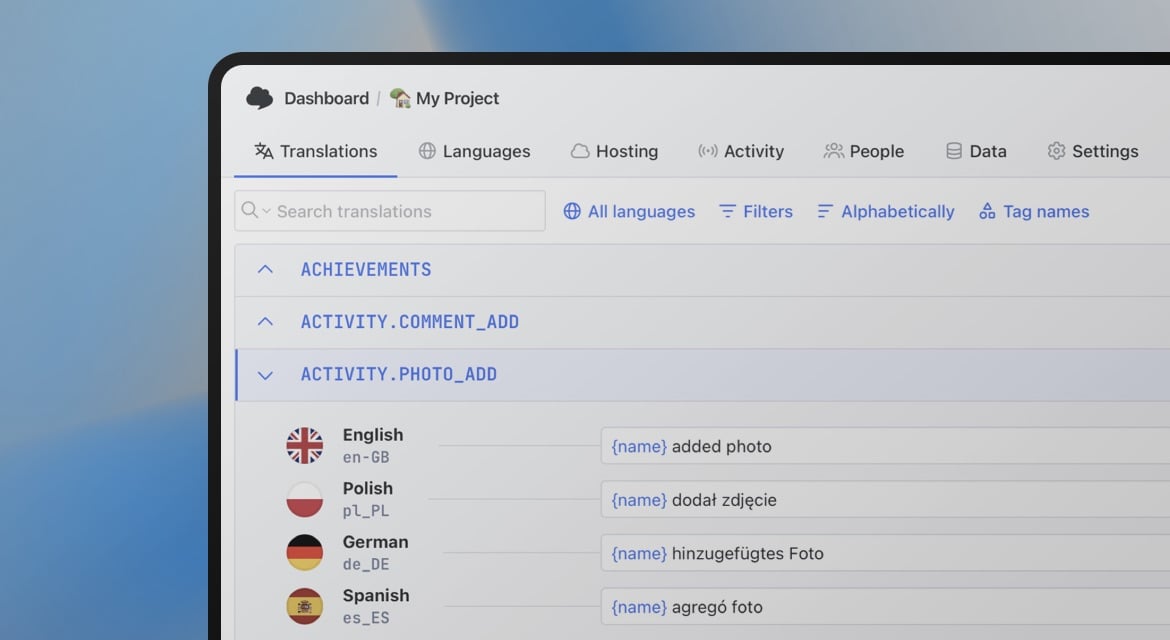
In the SimpleLocalize translation editor, we recently updated the Tab key behavior to follow A11y standards. Tab now navigates between quick actions (accept, auto-translate, QA checks) rather than jumping to the next translation entry. If you prefer the previous behavior for text formatting workflows, you can revert it in Editor Settings under "Skip quick actions on Tab."
Small changes like this matter when translators spend hours per day in an editor.
A localization accessibility checklist
Use this as a starting point for auditing your multilingual product:
Language and content
- All user-facing strings are translated, including alt text, ARIA labels, error messages, and placeholder text
- Translations were reviewed by a human with context, not just machine-generated
- Key-level context (descriptions, screenshots) was provided to translators
- The
langattribute is set correctly on the<html>element per locale - Inline language switches use
langon the relevant element
Layout and rendering
- Layouts are tested with the longest expected translated strings (aim for 2x English length for German, Finnish, and similar)
- No fixed-width containers truncate translated text
- RTL layout is implemented for Arabic, Hebrew, Persian, and Urdu using CSS logical properties
- Font coverage is verified for all supported scripts before launch
- Directional icons are mirrored for RTL locales
Technical
- Date, time, number, and currency formats use
IntlAPIs and match regional conventions - Plural forms are implemented correctly for all supported languages using ICU message format
- Locale detection respects the user's explicit preference, not just the browser header
- A language selector is available, visible, and usable via keyboard
Process
- Translatable strings include all accessibility metadata, not just visible UI copy
- New languages go through layout testing (including RTL and text expansion) before release
- Translation QA checks are part of the release process, not an afterthought

Why this is a product decision, not a compliance task
Accessibility compliance and genuine inclusive design are not the same thing. WCAG does not have a requirement to support multiple languages. But if your product's stated goal is to serve users in a given region or language community, then failing to do so accessibly is a design failure, not a legal one.
The users most affected by poor localization accessibility are often the users least equipped to work around it: those with less digital literacy, those using assistive technology in non-English contexts, and those who need the product to actually work rather than being able to choose an alternative.
Treating localization as an accessibility concern shifts the conversation from "do we need to translate this?" to "can every user we serve actually use this product"? That is a more useful question, and it tends to produce better decisions.
If you are building the case internally for investing in localization quality (not just coverage), the framework in Localization ROI: How to measure revenue impact gives you the numbers side. This post gives you the inclusion side. Both matter.
Localization decisions sit inside a broader strategy: which markets to enter, when to add a language, how to staff and govern the process. Our localization strategy guide covers that full picture for SaaS and product teams.