Translation key is a unique identifier for a translation string. Translation keys are used to identify the translation string in the codebase and in the translation editor.
Create translation keys
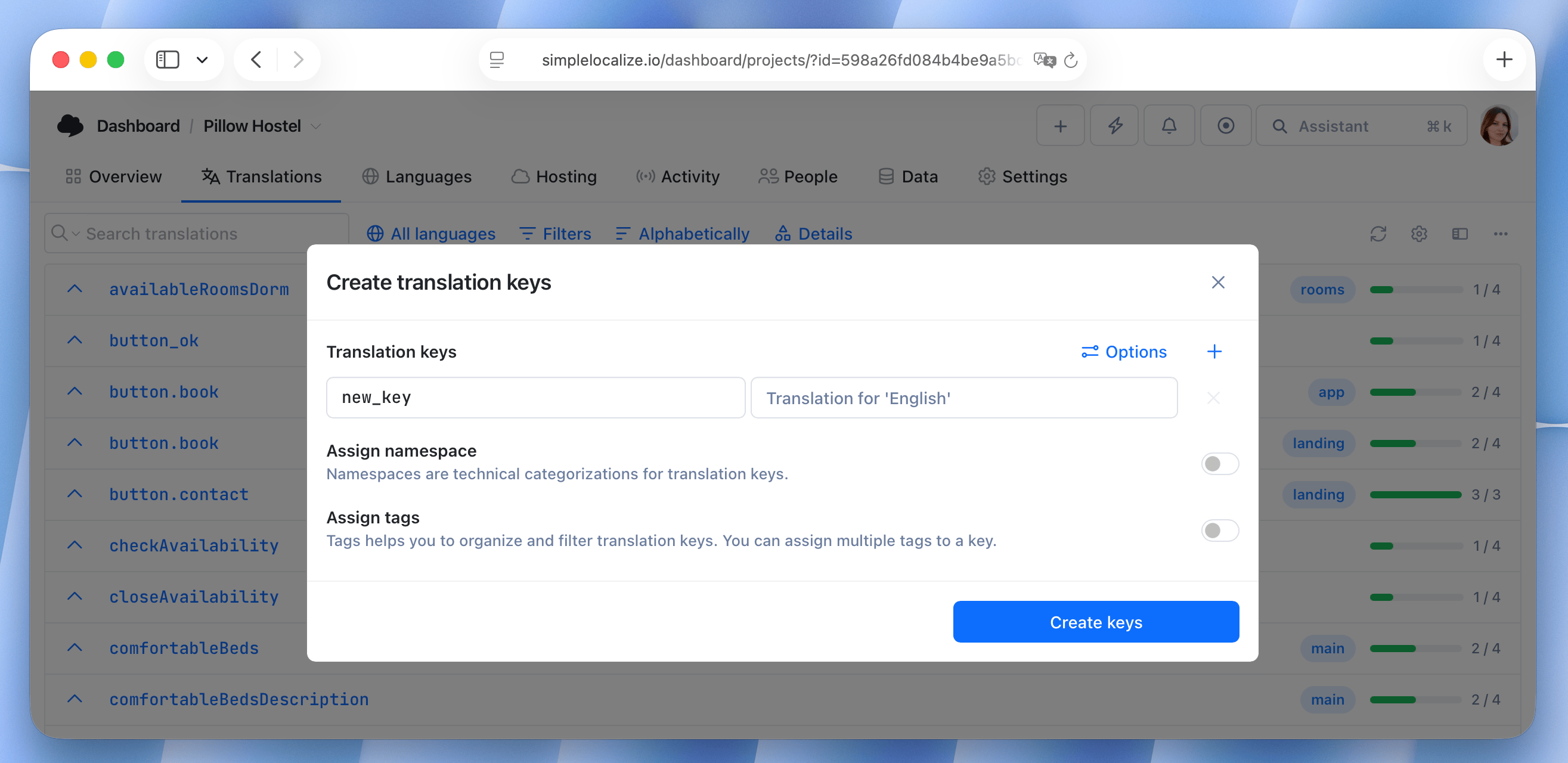
To add a new translation key, click on the plus button in the top right corner of the translation editor and select Create translation key.
There, enter key name, add translation (enable in Options), assign namespace, and add tags to the translation key.
Translation key settings
Right-click on a translation key to open the context menu and choose Manage key. In the Table View, you will find the Manage key button near the translation key name.

This will open the translation key settings where you can edit the key name, key type, and other settings.

Translation key settings include:
- Key name: The unique identifier for the translation string. You can edit the key name here.
- Namespace: The namespace where the translation key is stored. You can edit the namespace here.
- Tags: Tags are used to categorize translation keys. You can add, edit, and remove tags here.
- Disable auto-translation for the translation key.
- Lock translations for the translation key to prevent further changes.
- Mark as deprecated to indicate that the translation key is no longer in use.
- Set characters limit for the translation key (learn more about characters limit).
- Exclude translations (beta) in selected languages.
- Translations are excluded from translations exports and Translation Hosting.
- Excluded translations are hidden in the translation editor and are not visible to translators.
- Excluded translations may still be visible and included in some parts of the platform's UI, e.g. QA checks, and statistics.
- Exclude translations can be managed and configured by users with enabled beta features, but it affects all project members regardless of the beta feature setting.
- Attributes: Add custom metadata to the translation key. Attributes are used to store additional information about the translation key.
Delete translation keys
To delete a translation key, click on the Delete key button in the translation key settings.
To delete multiple translation keys at once, hold the Ctrl key and select the keys you want to delete. Then click on the Delete selected keys in the bulk actions panel.